
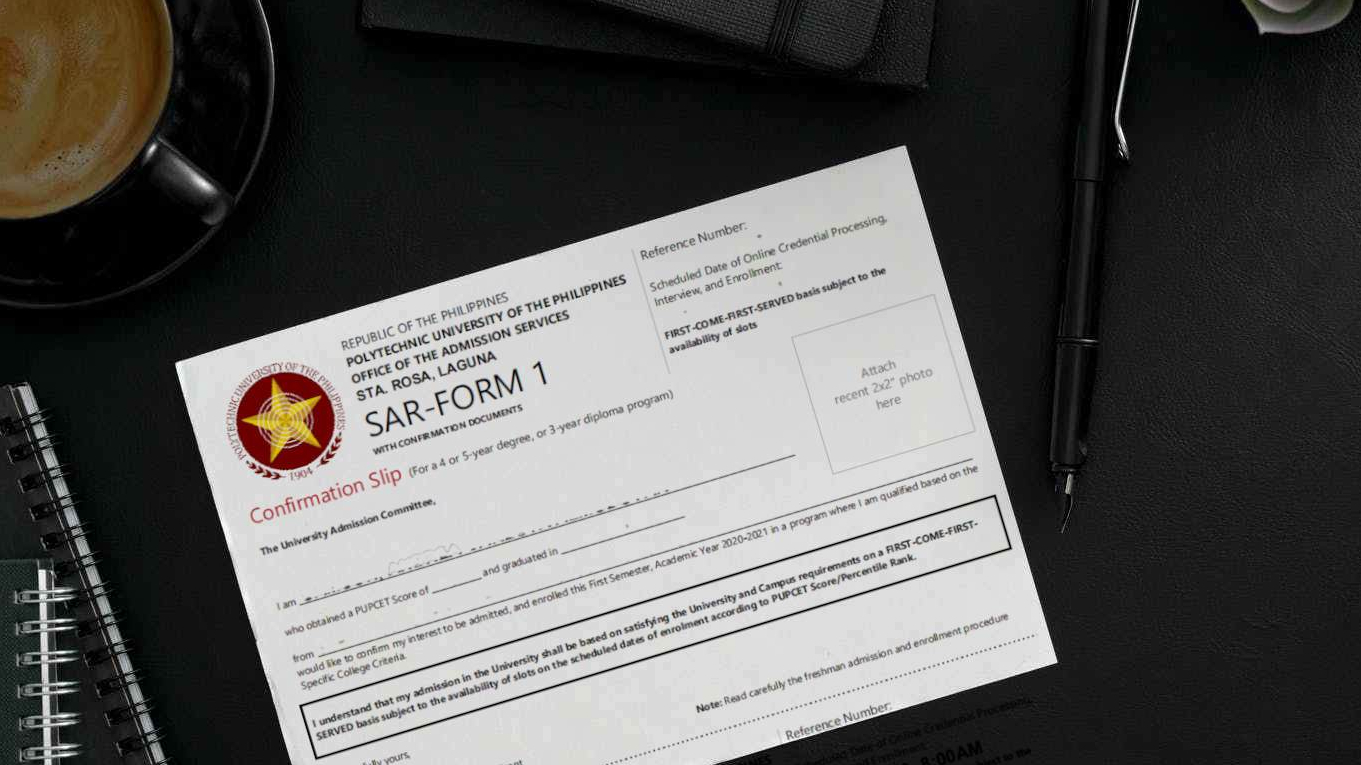
Outlined in this post are the step-by-step procedures for online admission and enrollment and a downloadable link for applicants having difficulties in printing the SAR-FORM1. (The step-by-step procedure can also be downloaded for offline viewing. Continue)
STEP 1. Search for name at https://www.pup.edu.ph/iapply/results/pupcetbsc2020. First two letters are acceptable

STEP 2. After clicking the Search button, there will be different link buttons under the Applicant’s name:
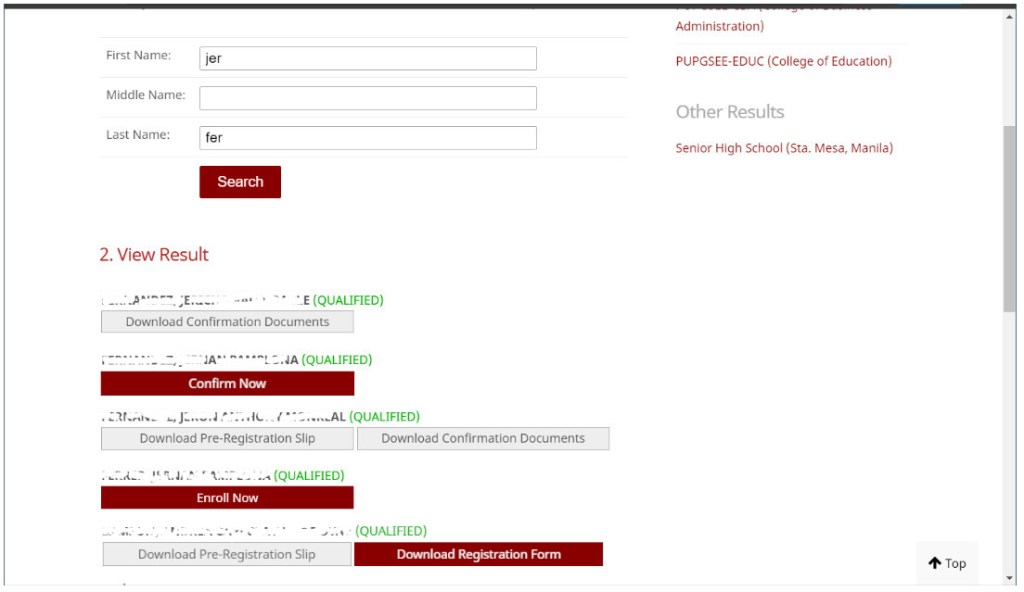
- Confirm Now. The Applicant has not confirmed yet
- Download Confirmation Documents. The Applicant has confirmed already
- Enroll Now. The Applicant has not enrolled yet. This will only appear during the Applicant’s enrollment schedule. Proceed to Step 3.
- Download Pre-Registration Slip & Download Confirmation Documents. The Applicant has enrolled already.
STEP 3. Clicking the Enroll Now button will take the Applicant to the PUP iApply Online Enrollment Authenticate page. They are only given three (3) attempts to provide the correct information.

Common causes of authentication failures include:
- Wrong Date of Birth. Verify in the PUP iApply Desktop App the date of birth they submitted during online registration
- Invalid Date of Test/Exam. This is common for Batch 4 Applicants. They must generate their ePermit first from https://iapply.pup.edu.ph/claimpermit. If they still have no ePermit, notify the Admission Services.
Tip: The word TEST PERMIT on the Authenticate page will also take the Applicant to the Claim Permit page. - Right Information but Cannot Proceed. Each applicant has a unique link provided for them. Go back to Step 1.
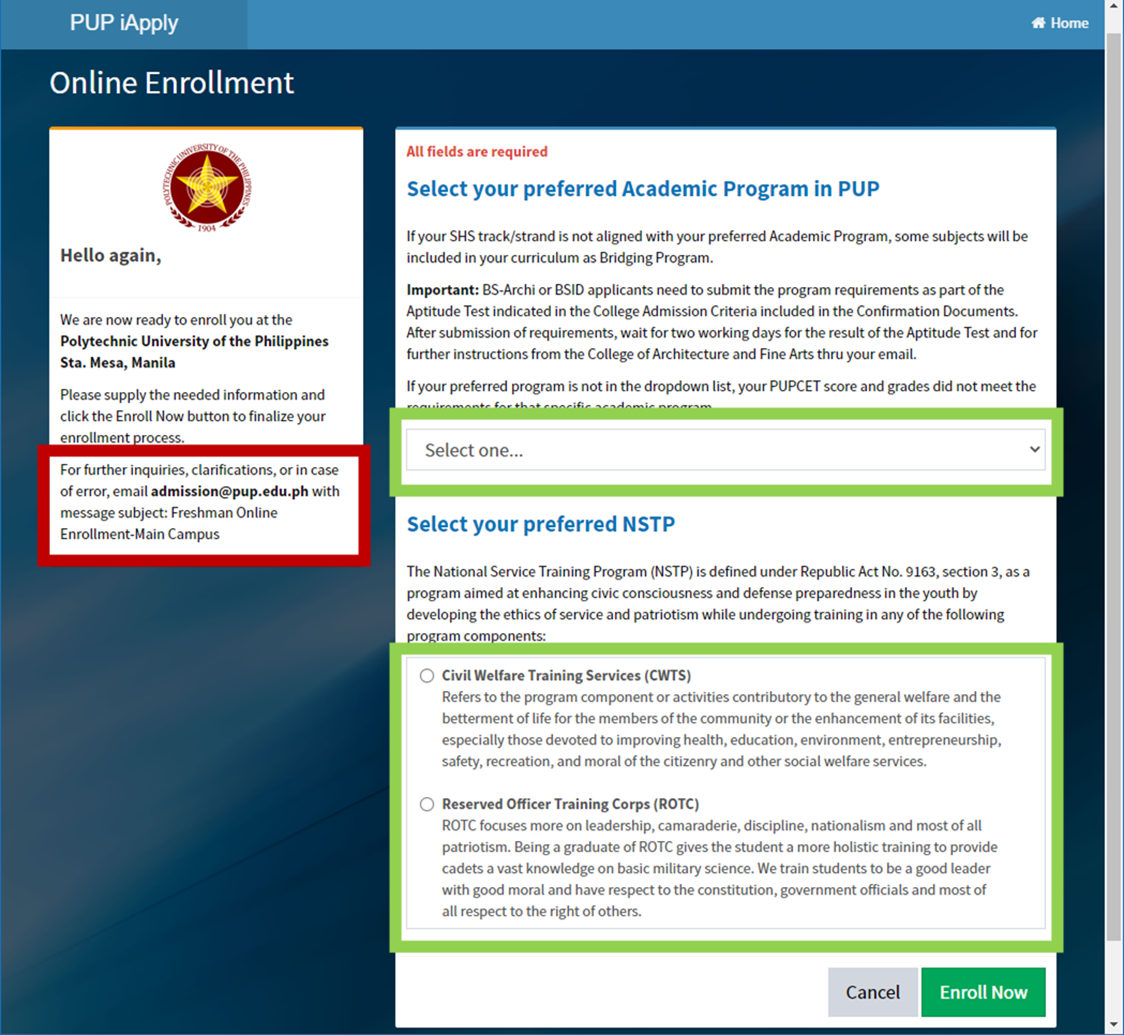
STEP 4. After a successful authentication, the Applicant will be taken to the Online Enrollment page to select their preferred Academic Program and NSTP. The page displays the list of the academic programs the applicant is qualified based on his/her Grade 10 and 11 GWA, Grade 10 Math, Science, English grades, and SHS Strand vs the College Admission Criteria.
STEP 5. Clicking the Enroll Now button will prompt an alert message if the Applicant is sure to submit with finality:

- Press OK to proceed. This will process the Applicant’s enrollment and their Pre-Registration Slip will be generated.
- Press Cancel to go back to the page. If the Applicant wants to review their selection.
Tip: Each Applicant is only given 20 minutes to finish the entire online enrollment session.
STEP 6. The browser will download the Applicant’s Pre-Registration Slip. It is strongly recommended to save this PDF file.


Still can’t print SAR-FORM1? Click here to download a copy of SAR-FORM1, you can use this copy as a reference for the completion of your requirements.
 PUPsrc
pano po pag nakadownload na ng pre registration pero di nadownload yung pdf nung nagconfirm now. ganon paden po kase nakalagay eh di tulad nung nasa pic dito. Download pre reg at download reg lng nakalagay.
LikeLike
you send your inquiries at admission.starosa@pup.edu.ph
LikeLike
Hello po paano pag no academic display po yung nalabas sa choices of course may chance pa rin po ba yon na maka enroll sa PUP sana po may makasagot. Thank you po.
LikeLike
please read this post https://pupsrc101.school.blog/2020/09/08/enrollment-of-waitlisted-applicants/
LikeLike
Hello po okay lang po ba if ever rotc yung choice na napili? Hindi ko po kasi alam na wala palang rotc sa pup sta rosa.
LikeLike
Check this post: https://pupsrc101.school.blog/2020/09/11/nstp-roct/
LikeLike